

Visit the Ordering Website
Open the Parent Portal URL provided to you by your School, in your Internet Browser. This will open a Login Page of the Online Ordering System.
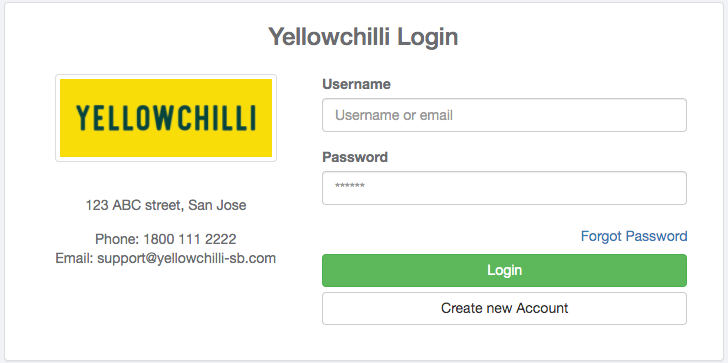
- If you already have an account in the ordering system, you can Login to your account using your email/ username and password.
- If you are not able to login or have forgotten your Password, click on Forgot Password link on this page.
- If you have NOT set up an ordering account, click on the Create new Account Button on this page.
After Successful Login
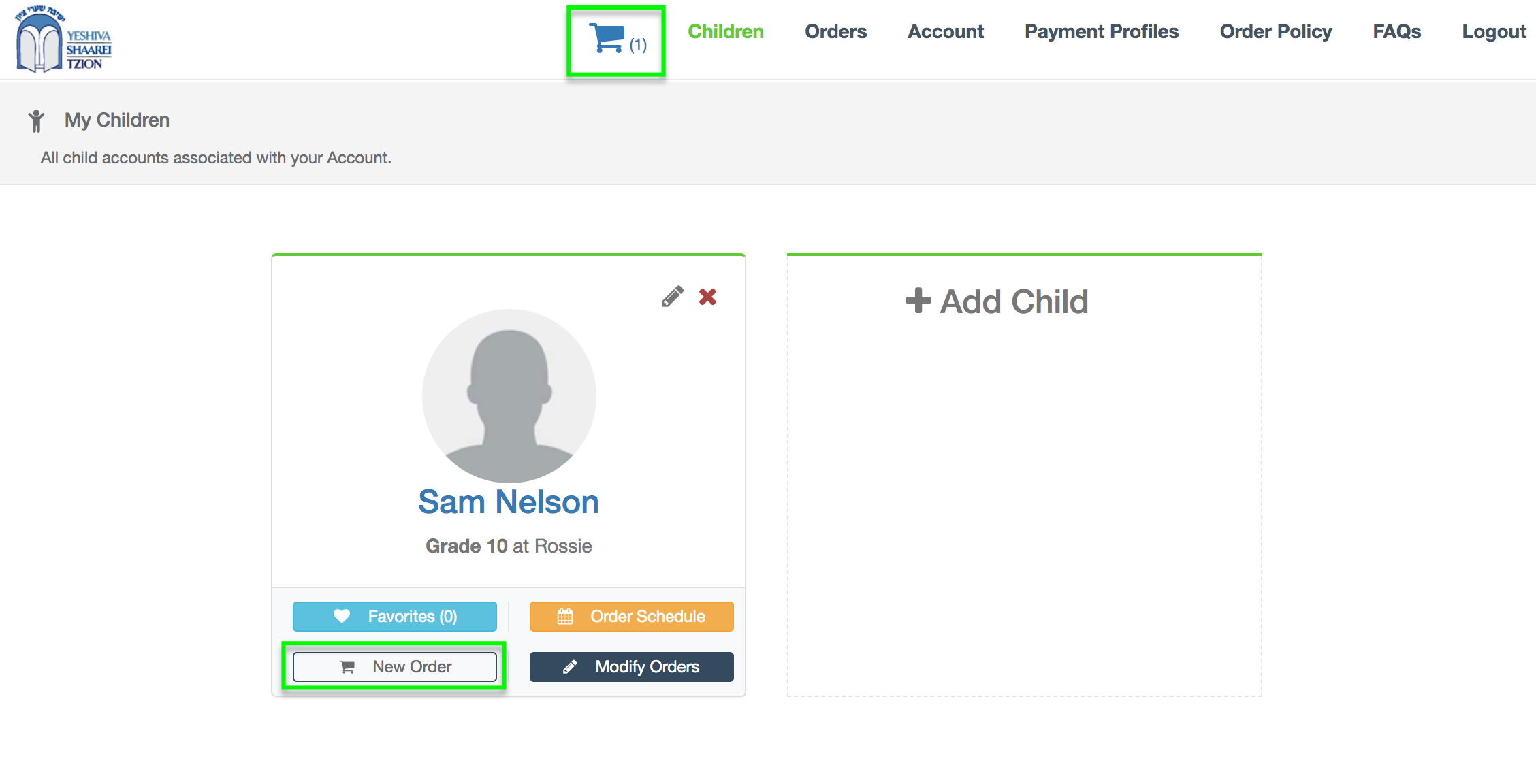
Once you successfully login to your account or after you create a new Account, you will be taken to the Children page as shown below.
On this page, you can click on the Add Child button to add a new Child account under your Account.
You can also make changes to an existing Child Account or remove it altogether.
Purchase a Meal Plan
Now, to purchase a meal plan, click on Meal Plans in the header.

Then, select the Purchase Meal Plan button.
From here, you can:
1. Select your Meal Plan. Then, click on the "Go to Payment" button.

2. Now, enter your payment details.

3. In this step, the system will place orders for each day of the Meal Plan. You will be sent a confirmation email with what item was picked for each day.

Modify Meal Plan Orders
If you did not like the item the system automatically picked, you can modify it. You will not get charged for exchanging items under the meal plan.
To modify your item, go to Orders in the header. Then, click Modify Orders.

Now, you can see all of the items that were automatically picked.
As an example, say we want to replace the order on Tuesday, September 1st. We will be replacing the ordered item "Alfredo pasta/Sauted green beans and garlic bread" with "Beef Tacos."
To do so, edit the Alfredo pasta option from the menu using the pencil icon as shown below.

This will bring up the available replacement Items. Select the replacement Item as shown below.

Your calendar will now show the original order as removed and show the the selected replacement as a new Item in the cart.

Now, click through the checkout. You will not have to pay to replace orders on the meal plan.


 Can't find what you're looking for?